How to Take and Annotate Full-Page Screenshots
Have you ever tried to take a screenshot of a long landing page, only to realize your built-in OS snippet tool only captures what's currently visible on your monitor?
For years, QA testers, marketers, and developers have relied on clunky workarounds—taking five different screenshots and stitching them together in Photoshop, or printing the page to PDF and converting it to an image.
There is a much better way.
Why Native Tools Fall Short
Tools like macOS's Cmd+Shift+4 or Windows Snipping Tool are incredible for quick snips. However, they lack context. When you are filing a bug report or sharing a design review, you often need to show the entire page layout to provide proper context.
The Solution: In-Browser Capture
To capture an entire webpage (including the parts hidden below the scroll fold), you need a tool that runs directly inside the browser DOM.
This is where SnapForge comes in.
1. One-Click Full Page Capture
SnapForge automatically scrolls through the page, capturing every pixel perfectly, and stitches it into a high-resolution PNG in under 3 seconds. It even handles sticky headers and lazy-loaded images correctly.
2. Built-in Annotation
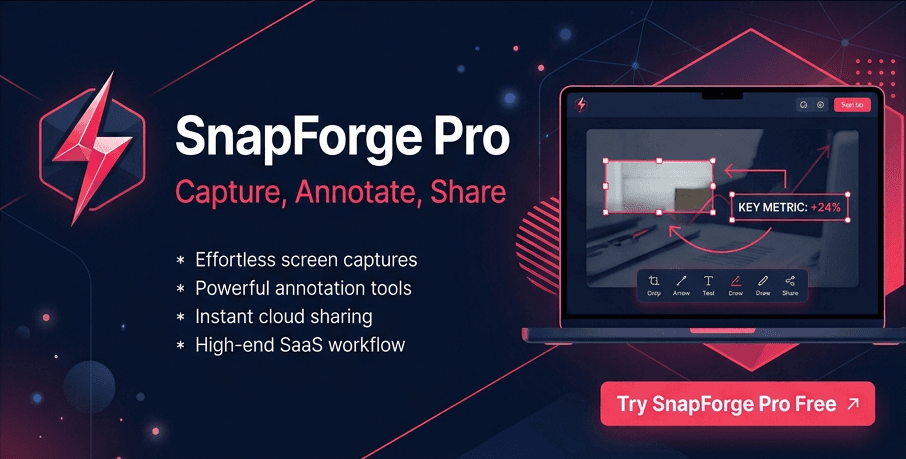
Taking the screenshot is only half the battle. If you're filing a bug, you need to point it out. SnapForge includes a beautiful, built-in annotation suite.
- Draw arrows to highlight broken buttons.
- Blur sensitive customer data before sharing.
- Add text notes directly onto the image.
3. Copy to Clipboard
Forget downloading files to your desktop just to upload them to Slack. SnapForge allows you to copy the fully annotated image directly to your clipboard.
Streamline Your Feedback Loop
Clear visual communication is the key to fast product development. By adopting a dedicated screenshot and annotation tool, your team will spend less time explaining bugs and more time fixing them.